Create and send an invoice
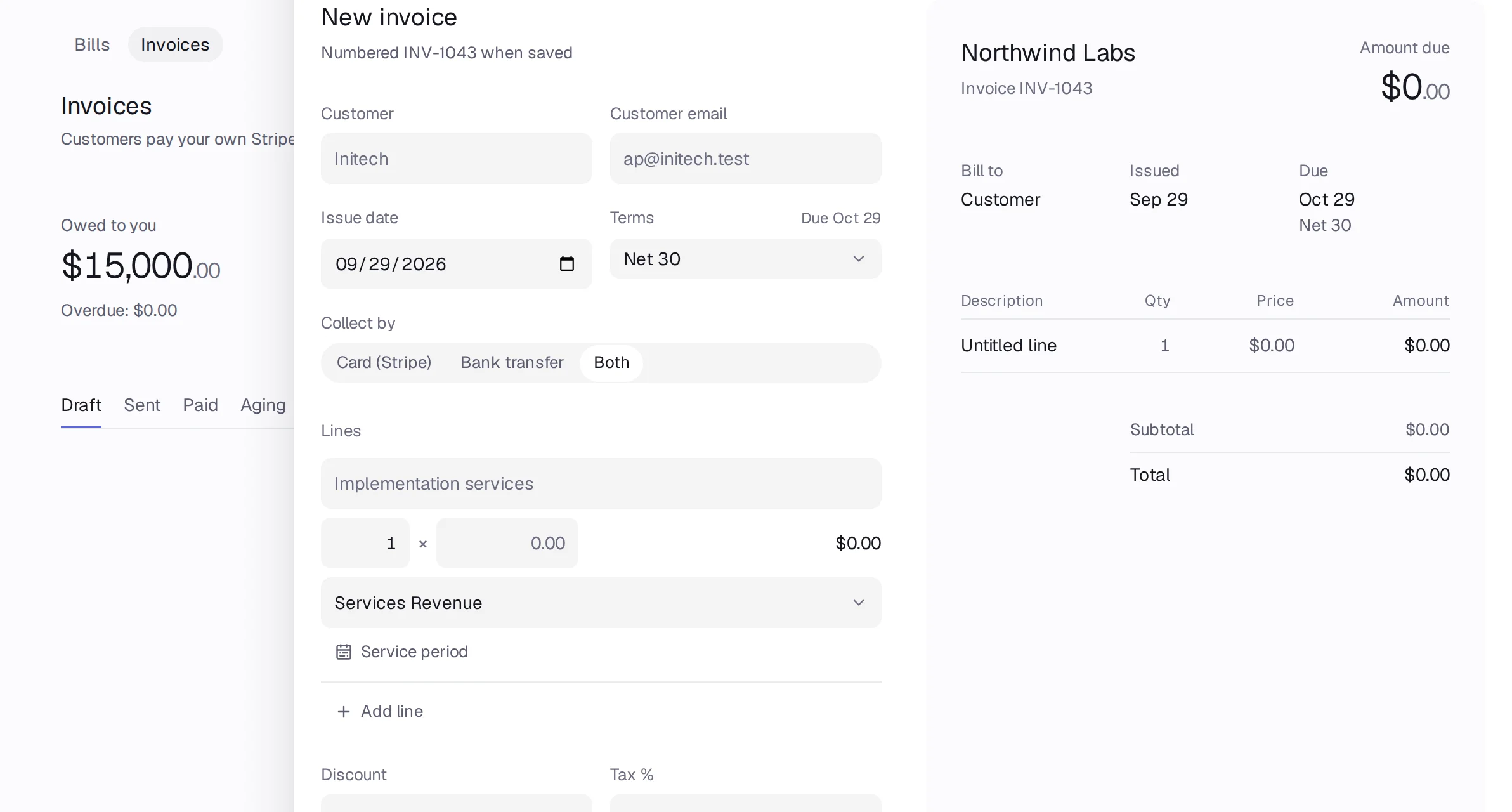
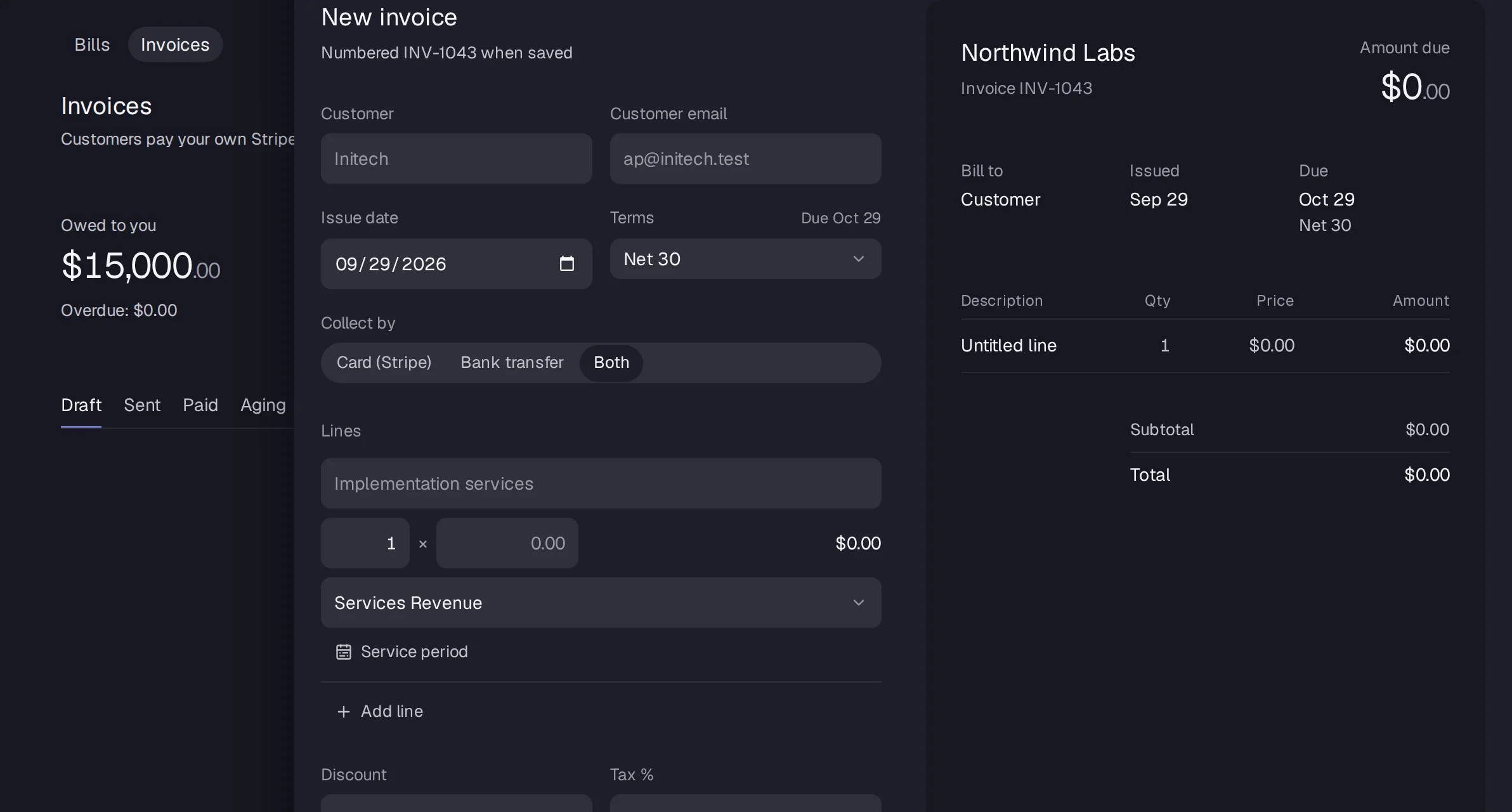
Open Bills and invoices › Invoices and press New invoice. Add the customer, terms and lines, then press Send: your customer gets a link to pay by card or bank transfer.
In Accountable: Bills and invoices › InvoicesUpdated September 29, 2026
Steps
Step 1: Open Bills and invoices in the sidebar and pick the Invoices tab. Press New invoice.
Step 2: Fill in Customer, Customer email, Issue date and Terms (Due on receipt, Net 15, Net 30 or Net 45).
Step 3: Under Collect by, pick Card (Stripe), Bank transfer or Both.
Step 4: Add lines with Add line, or Add from items. Add a Discount, Tax % and Memo if you need them.
Step 5: Check Send to and press Send, or press Save draft to finish later.
Step 6: After it's sent, copy the Invoice link or Open PDF.
Good to know
- Card payments need Stripe connected.
- Set your name on invoices, accent color, default terms, numbering and bank details in the invoicing settings (the gear on the Invoices tab).