How moving your books works
Upload your old tool's general ledger or connect it. Accountable rebuilds your history, proves every month-end to the cent, and goes live only when you say so.
Steps
Step 1: Press ⌘K and choose Move books from Digits, QuickBooks or a spreadsheet. New companies see this screen right after setup.
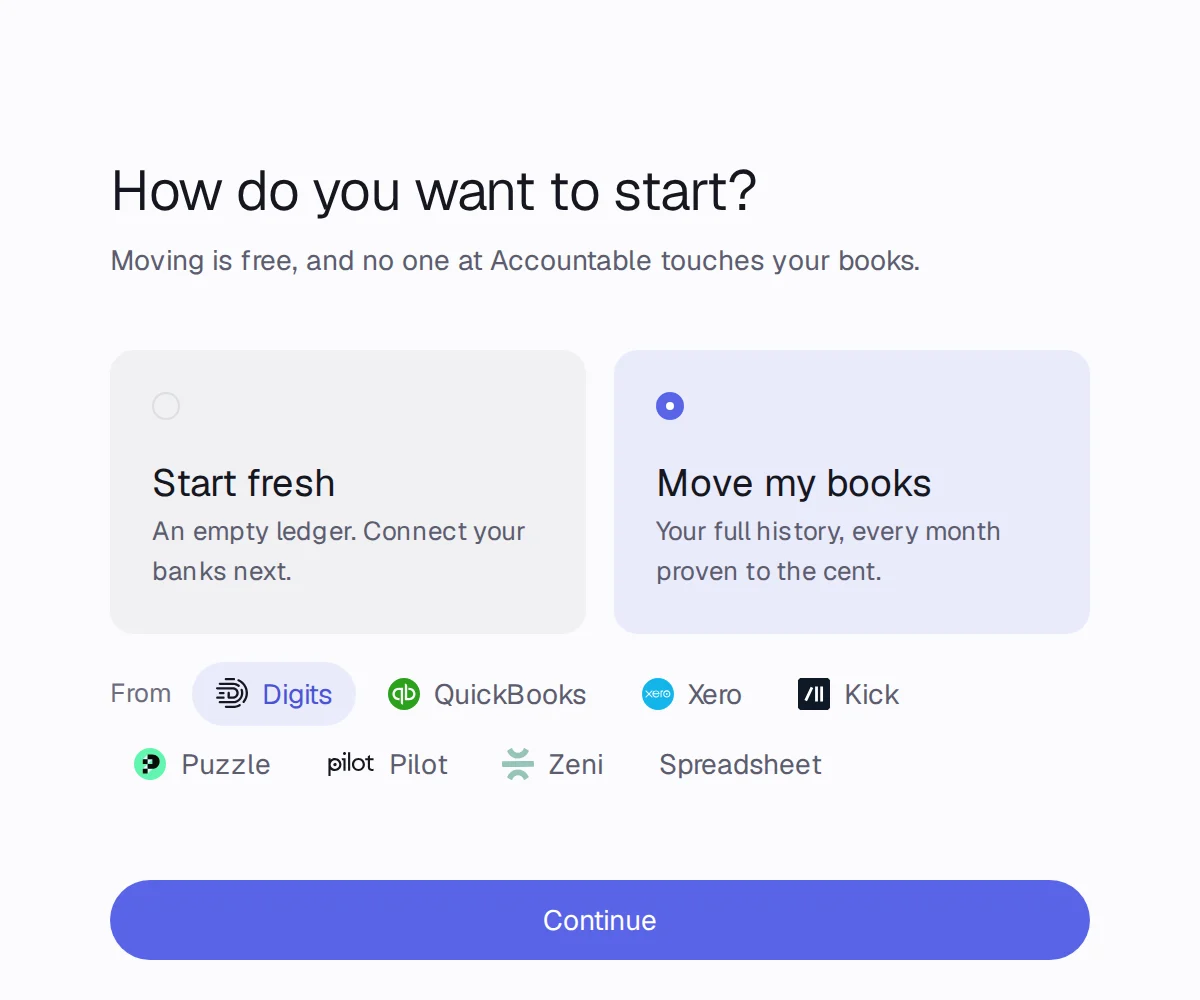
Step 2: On How do you want to start?, pick Move my books and choose your old tool under From, then press Continue.
Step 3: On Bring your old books, connect your old tool (Connect QuickBooks, Connect Xero or Connect Digits, and Kick, when your workspace shows the option) or upload its general ledger export.
Step 4: Press Start the move. Accountable shows Checking every month against your old tool while it works.
Step 5: Read the proof: N of M months tie to the cent. Answer each question card for the months that need you, then press Continue.
Step 6: On Ready to go live, check the history, months proven and transactions, then press Go live.
What Accountable does with the file
- Reads every entry, account and vendor, and rebuilds your chart of accounts and history in a draft. Nothing is in your books until you press Go live.
- Checks every month-end, account by account, against your old tool's own numbers and your bank and card statements. A month ties only when the difference is exactly $0.00.
- Asks you about each month that doesn't tie, one question at a time, with the fix it suggests.
- Lets you undo the whole move for 30 days after you go live.
Good to know
- Moving is free on every plan.
- Nothing changes in your old tool: Accountable only reads from it.
- Rather not do it yourself? We'll move you for free.