Import a bank or card statement file
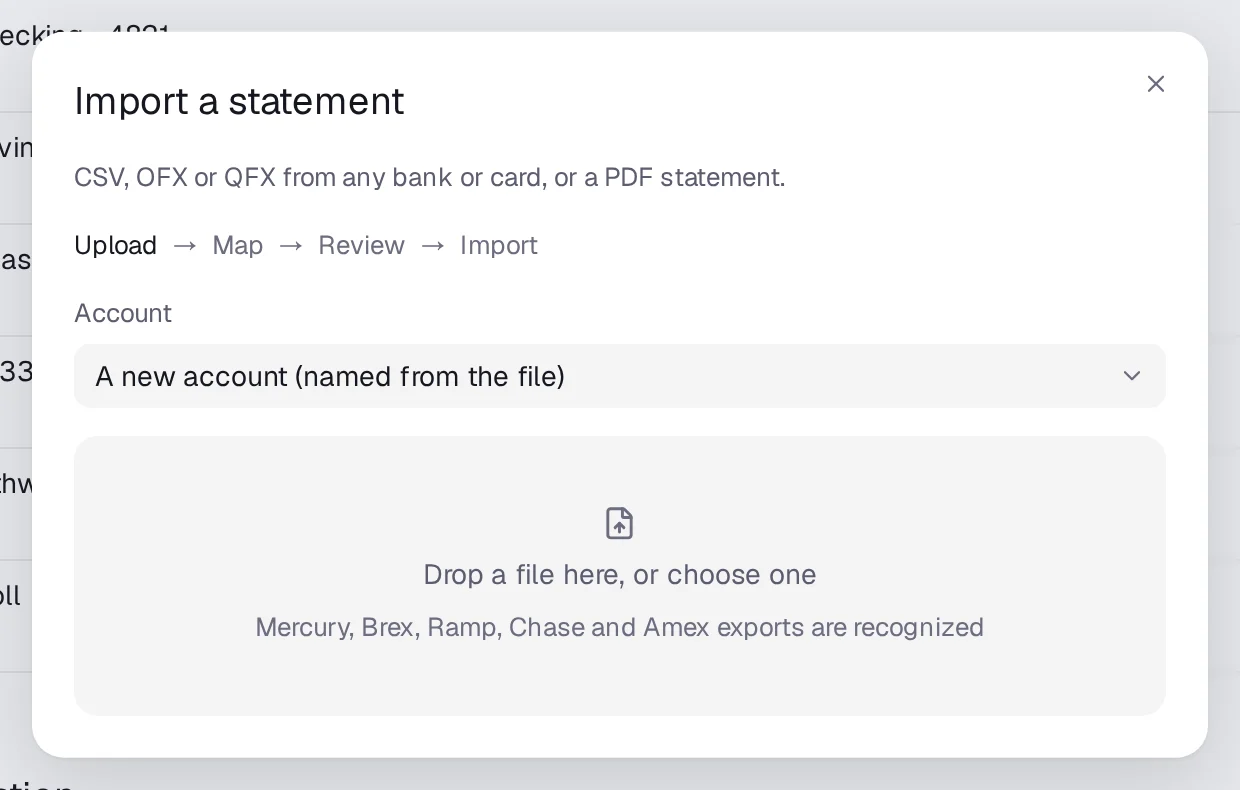
Upload a CSV, OFX, QFX or PDF statement from any bank or card. Accountable maps the columns, skips duplicates and checks the closing balance.
Steps
Step 1: Press ⌘K and choose Import a bank statement, or open Connections (Settings › Banks, cards and payroll) and press Import file.
Step 2: Under Account, pick the account, or A new account (named from the file).
Step 3: Drop the file on Drop a file here, or choose one.
Step 4: On Map, check the Date, Description and Amount columns (or Debit and credit columns) and whether A positive amount means Money in or A charge. For a PDF or OFX, check Statement from, to, Opening balance and Closing balance.
Step 5: Press Review. You see how many are New, Duplicates skipped and Can't read.
Step 6: Press Import N transactions, then Done.
Good to know
- Mercury, Brex, Ramp, Chase and Amex CSV exports are recognized without mapping.
- Upload statements every month for accounts without a live feed, so each month can be matched to the bank.